Introduction
The widespread availability of SSDs has been an absolute game-changer for the world of computers.
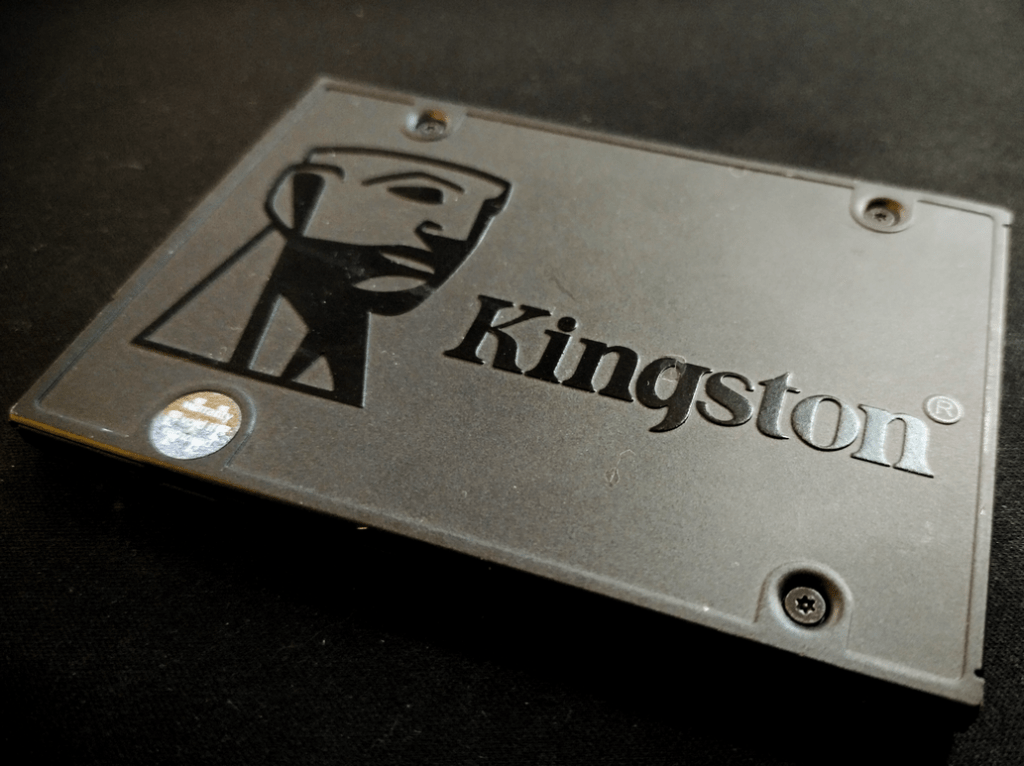
Younger generations might never experience the agony of a sluggish mechanical hard drive and, honestly, good for them.
Sure, the soft whirring of a spinning disk buried somewhere in your tower was oddly comforting, but turning your computer on and having time to go make a cup of tea before windows loaded up was no-ones idea of a good time.
Worse still were those cheap laptops with 5400RPM hard drives, usually paired with insufficient RAM and a low-power CPU. Was that to save power perhaps with the slower spin speed? hmmm
Then SSDs showed up and saved us all.
At first, they were pricey. You’d grab a 120GB drive for your OS and essentials, then stick to a chunky hard drive for storing games and media. Eventually, though, it became clear that running games off SSDs was the way to go, loading screens shrank and things just felt snappier.
Fast forward to now, and a 1TB M.2 drive is practically the baseline. We’ve come a long way from those clunky platters of the past if your system takes longer than five seconds to boot, it feels broken.
We’ve moved from noisy patience to silent speed and while I wouldn’t trade that, part of me misses the clatter that told you your machine was doing its best.
Availability
There are no shortage of places to get an SSD.
I usually buy mine from AliExpress which seems to be the cheapest place for a new drive. Around £7 delivered for 128Gb is roughly the norm, plenty of space for XP era games..
These may be slower than the big brands, I definitely wouldn’t have one as the boot drive on my modern Ryzen system but they are definitely good enough for 2000’s gaming.
Reliability wise, I haven’t had one fail me yet but the data they hold is mainly old games – not something I’m too worried about.
I probably wouldn’t recommend that you keep your precious family photos on one of these but that’s just because I don’t know much about the technology – it may be perfectly safe or maybe I’m just winning the SSD lottery when I buy them.
I wouldn’t rate my chances of a refund if one did stop working anyway.
With the below brand also you get a picture of a dragon on it, so that’s just cool. Good old SomnAmbulist will be a household name one day, you read it here first.
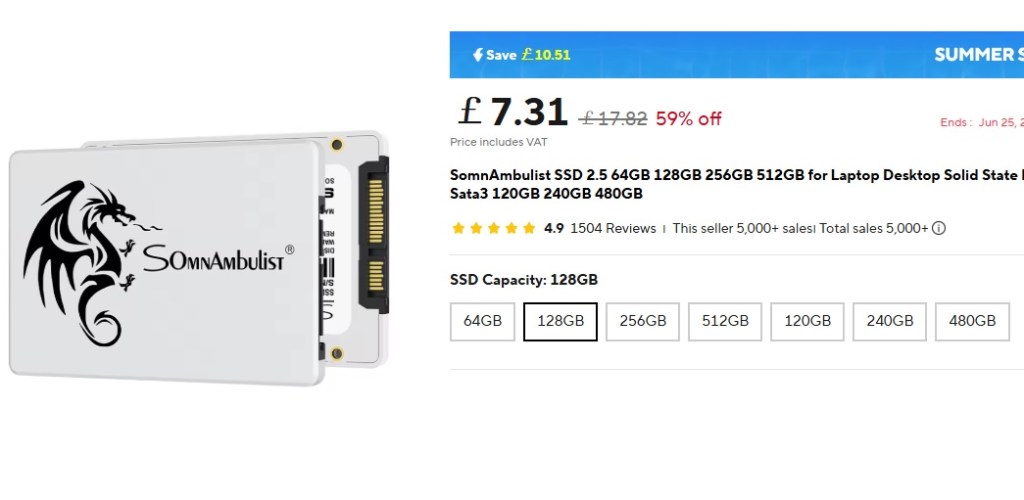
Whilst researching and writing this article, I did find some suggestion that another AliExpress brand ‘GoldenFir’ was not actually too bad.
I have one somewhere in one of these machines.. but there’s so many (machines and drives!).
IDE SSD’s?
Not going to happen, the two technologies missed each other by some years. If your old system only has IDE then you’ll need an IDE to SATA adaptor, they look like this:
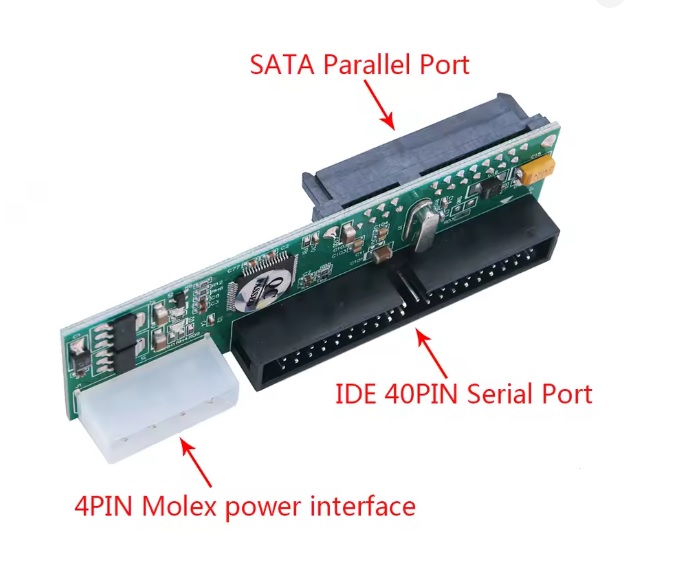
I get mine also from AliExpress, £2.50 including delivery cannot be argued with.
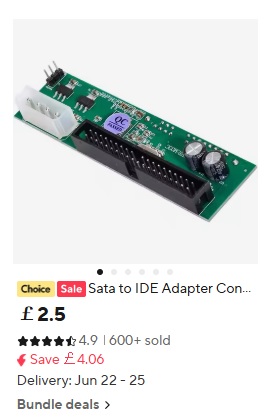
the final thing to go on your shopping list might need to be one of these:
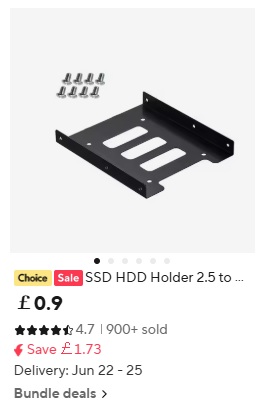
Unfortunately space doesn’t always allow for one, especially if you want to keep your floppy drive in there.
Too many of my PC’s look a bit like this:
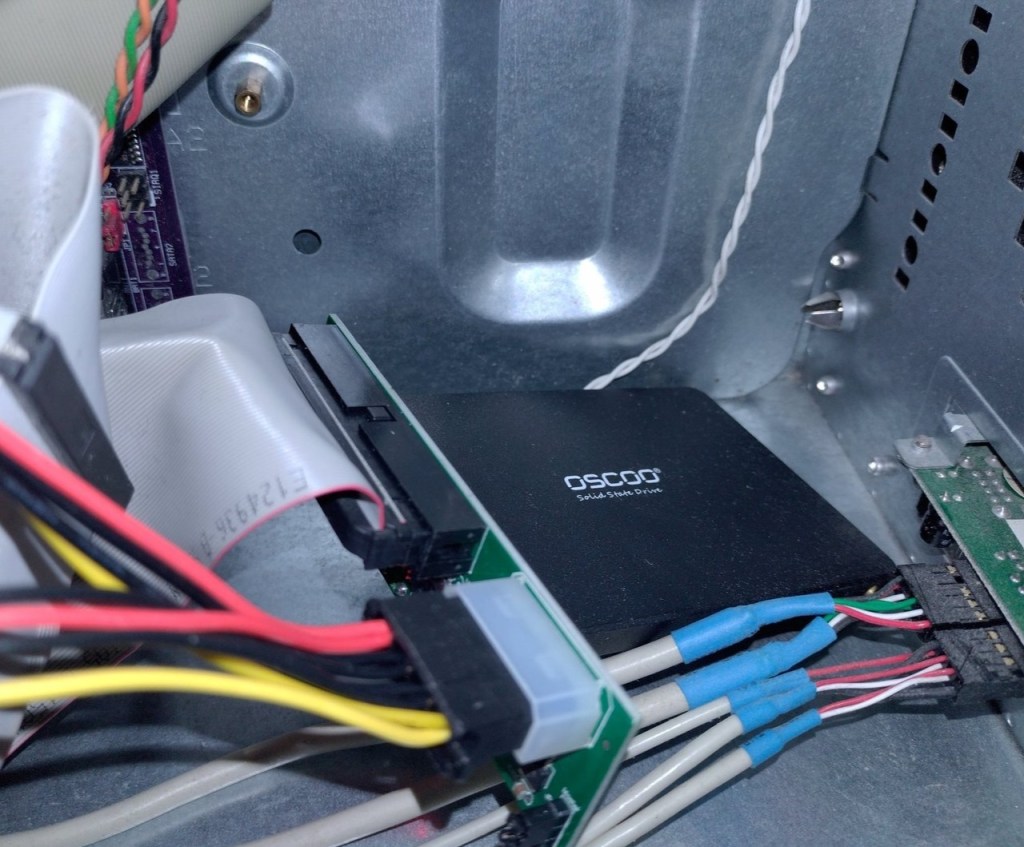
The problems with using SSD’s in WinXP (and earlier)
Getting yourself up and running with an SSD is pretty easy.
Plug it in and BIOS generally recognises it as it would any hard disk and off you go, everything seems well.
It’s not all well behind the scenes though, here’s why:
1. No Native TRIM Support
Trim is a command that tells the SSD which data blocks are no longer in use, so it can clean them up and maintain performance.
When you delete a file on an SSD, the operating system marks the space as available, but the SSD doesn’t immediately know it can wipe those blocks.
The TRIM command tells the SSD, “Hey, these blocks are no longer in use so go ahead and clean them up when you’re ready.” This helps reduce write amplification, maintain performance, and extend the drive’s lifespan.
Windows XP doesn’t support trim at all, which means:
- The SSD can slow down as it fills up over time.
- Write amplification increases, which wears out the drive faster.
Some SSD’s are designed to automatically provide TRIM actions at a firmware level, without the need for the operating system to get involved at all. I very much doubt this is the case for cheap AliExpress drives however.
I have done a lot of reading on the subject and there are lots and links to separate software but nothing really concrete that I can point to with any sort of reassurance that can be run solely from XP.
Most of my XP machines dual boot into Windows 7, an OS that does support Trim. My solution is to periodically boot into windows 7 and use the ForceTrim software found for free at the below link to force a trim.
https://www.mediafire.com/download/1cd8dh0msw2jq1w/ForceTrim.zip
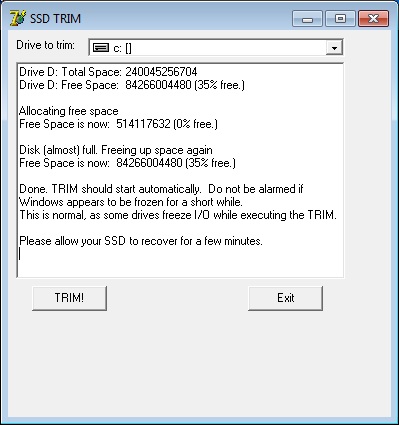
For my laptops with XP installed, I don’t bother. My GOG saved games are at risk perhaps but, that’s not exactly high stakes.
I’ve had no problems so far but then none of them get intensive use, maybe I’m lucky and the firmware is dealing with it for me.
2. Partition Misalignment
XP aligns partitions based on cylinder boundaries, not the 4K sectors SSDs use. This misalignment causes:
- Extra read/write operations for every file access.
- Reduced performance and increased wear.
My Solution: MiniTool Partion Wizard
https://www.partitionwizard.com/
This free software will align the partition for you, it only needs doing once – best done with a fresh install of windows, once your SSD is full of apps and games then this can take a long time to complete.
There software is very easy to use, just select the disk that you want then ‘Allign all partitions’ then click on ‘Apply’.
This will prompt a restart and it will work it’s magic before booting into windows again.
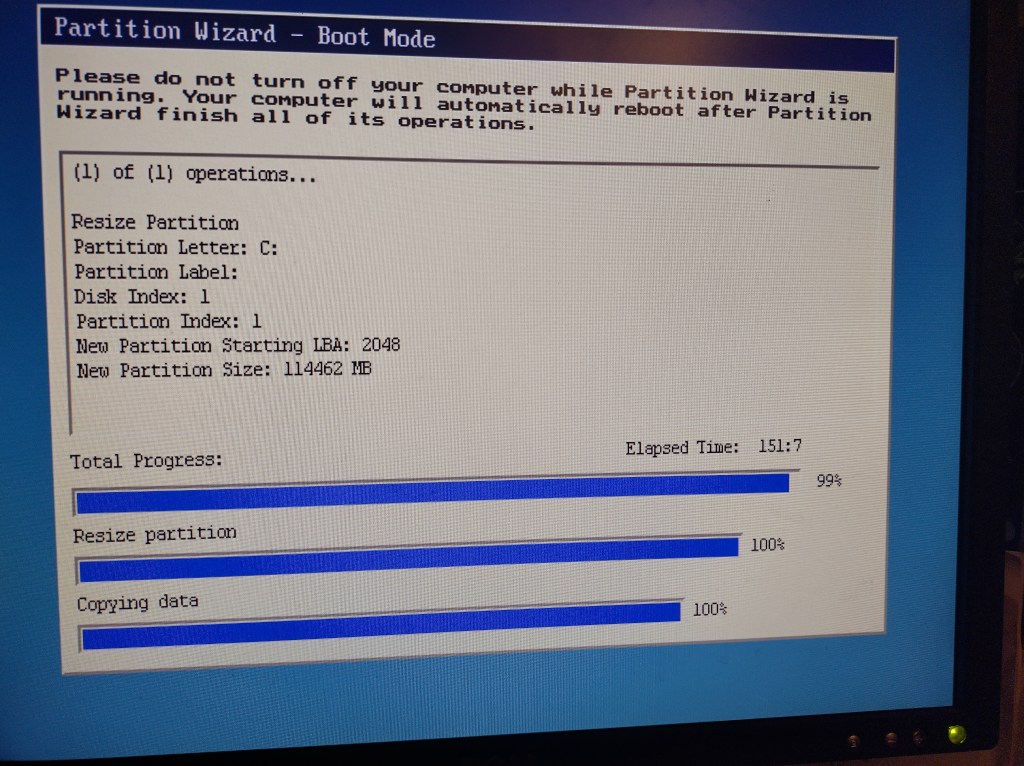
3. Defrag Danger
Defragmentation (or “defragging”) is a process used on traditional hard disk drives (HDDs) to reorganize scattered file fragments into contiguous blocks. This reduces the time the mechanical read/write head spends jumping around the disk, improving performance.
SSDs don’t have moving parts—they access data electronically, not mechanically. So whether a file is stored in one piece or a hundred, the access time is virtually the same. Fragmentation doesn’t slow them down.
on an SSD defragging rewrites large amounts of data, which wears out SSD cells faster.
SSDs use wear leveling and garbage collection to manage data efficiently without defragging
My Solution:
Windows XP doesn’t have automatic defragmentation like newer versions of Windows, so the first step is just to not manually defrag your drive – that’s easy then!
There are some things you can do to cut down on unnecessary wear. These can be done via the registry and I have written (ok, so I asked ChatGPT to write me) a little .reg file to install these tweaks easily everytime I do a fresh install of XP.
This is my file, but only use if you back up your registry first and you have little to lose – this is a registry edit from a stranger on the internet who has copied directly from an AI tool – if that doesn’t scare you nothing will.
Windows Registry Editor Version 5.00
; Disable NTFS Last Access Timestamp
[HKEY_LOCAL_MACHINE\SYSTEM\CurrentControlSet\Control\FileSystem]
“NtfsDisableLastAccessUpdate”=dword:00000001
; Disable Boot-Time Defragmentation
[HKEY_LOCAL_MACHINE\SOFTWARE\Microsoft\Dfrg\BootOptimizeFunction]
“Enable”=”N”
; Disable Prefetching
[HKEY_LOCAL_MACHINE\SYSTEM\CurrentControlSet\Control\Session Manager\Memory Management\PrefetchParameters]
“EnablePrefetcher”=dword:00000000
; Optional: Disable Paging Executive (keeps drivers in RAM, reduces disk I/O)
[HKEY_LOCAL_MACHINE\SYSTEM\CurrentControlSet\Control\Session Manager\Memory Management]
“DisablePagingExecutive”=dword:00000001
Running this and hitting restart makes the changes and hopefully buys you some more life in your SSD’s.
Further Links:
The great Phil at Phils Computer Lab has put up a video on the subject which is well worth a watch.
I have been using MiniTool Partition Wizard for some time as a consequence of watching this video.
I have collated information from this and other sources online whilst writing this article to put my own experiences and actions out there.
I hope it’s of some use to someone!
 Ash's Retro Hardware Reviews